Drive Files, Search, and Sharing
Browse storage volumes, upload files, preview documents, and create expiring share links in self-hosted Kurrier.
Drive Files, Search, and Sharing
Kurrier Drive lets you browse folders and files in a configured cloud storage volume. From the Drive interface, you can create folders, upload and download files, preview supported formats, and share files with expiring links.
Set up a volume
Before using Drive, configure a storage provider and volume in Platform → Storage. Then open Drive and choose the volume you want to browse. A volume is a named storage root; Kurrier displays its folders and files beneath it.
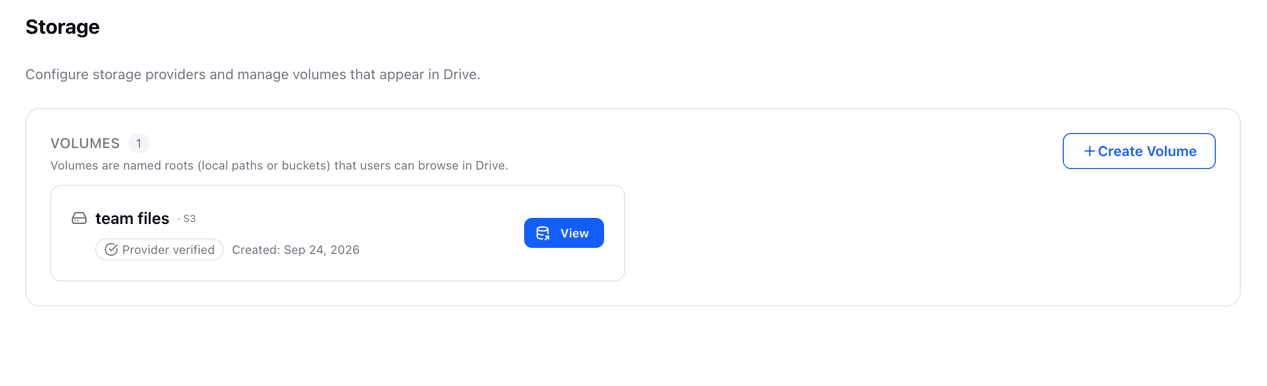
If Drive is absent from your self-hosted dashboard, check whether the Drive feature is enabled for your installation. See Installation for deployment settings.
Browse, search, and sort
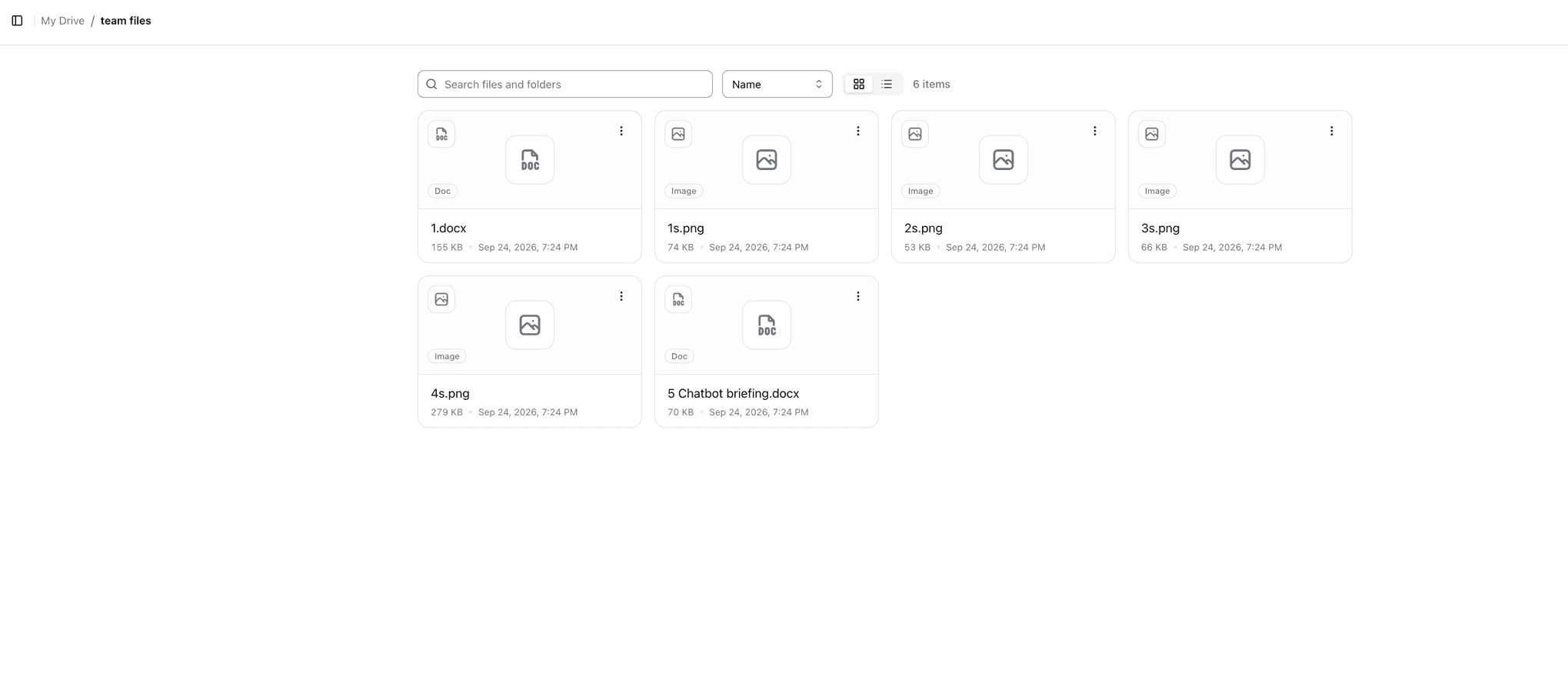
Open folders to navigate within a volume. Switch between grid and list views using the view control above the files. Use Search files and folders to filter the items in the current folder; it does not search every folder in the volume.
Choose Name, Newest, or Largest to sort the visible items. Folders appear before files.
Upload files and create folders
- Select New → Upload files to choose one or more files.
- Drag files from your computer onto the current Drive folder to upload them there.
- Select New → Create folder to add a folder at the current location.
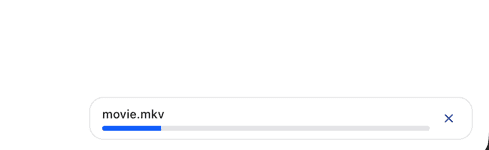
Upload progress appears while files are being transferred. You can cancel an upload from the progress panel. Wait for it to finish before leaving the page.
Preview and download
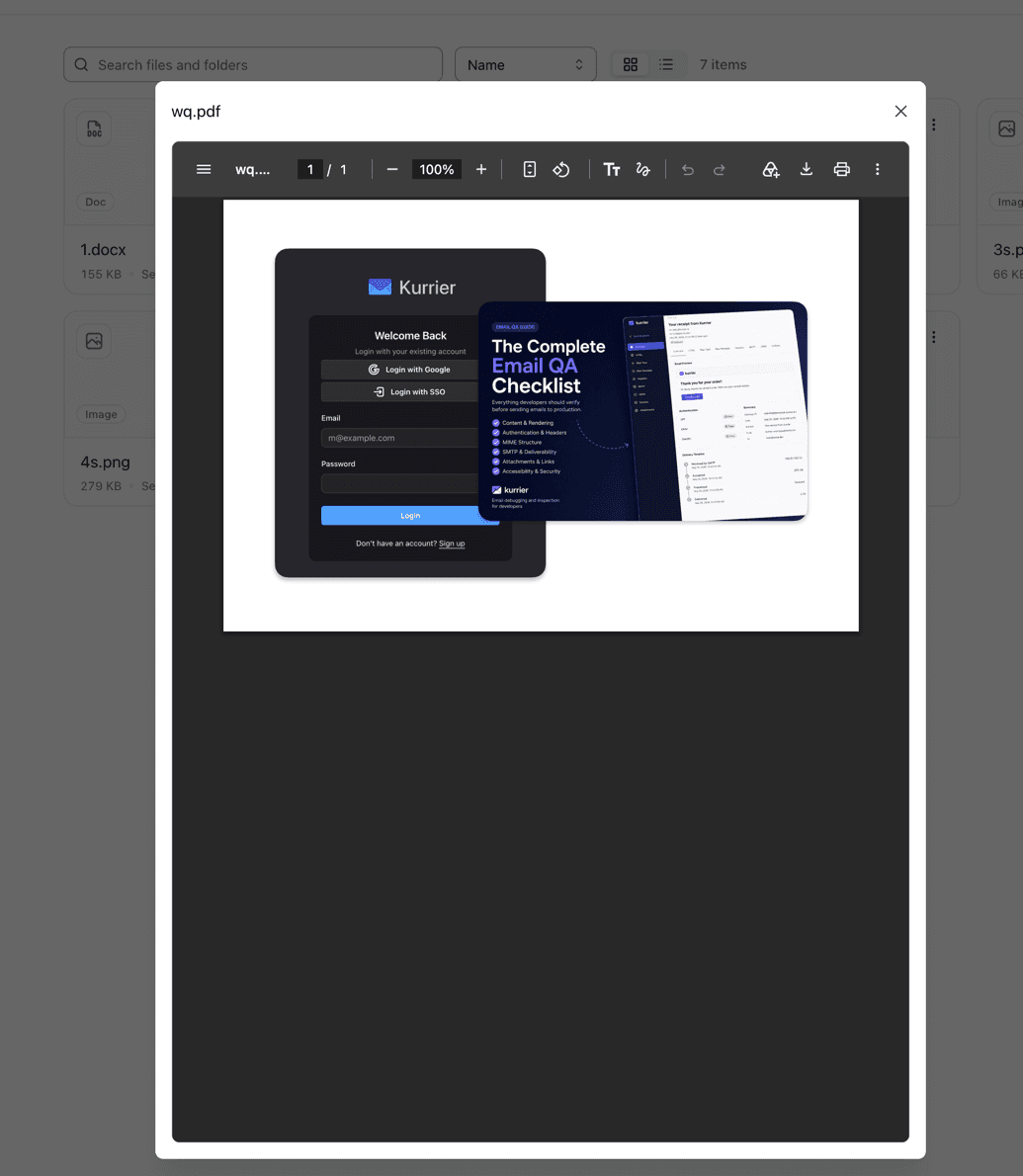
Select a supported file's icon or name to open its preview. The current preview supports PDF files and common browser images such as JPEG, PNG, GIF, and WebP. Other files may have an icon without an in-app preview; use the file's ⋮ → Download action instead.
Share a file
- Open a file's ⋮ menu and select Share.
- Choose when the link should expire: 1 hour, 1 day, or 7 days.
- Select Create link, then copy the URL using the button beside it.
- Send the URL to the intended recipient.
The URL is shown when you create it. Copy it before closing the dialog; existing link tokens cannot be displayed again. You can review the expiration dates of active links and revoke them from the same dialog.
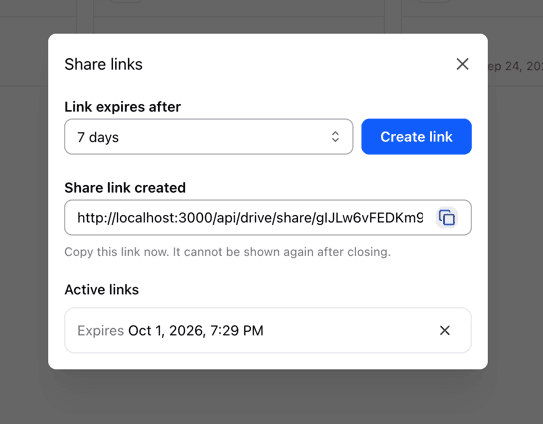
Anyone with an active link can download the file without signing in. Share links do not currently have password protection. A download URL already issued by the storage provider can remain valid briefly after you revoke the Kurrier link.
Delete a file or folder
Use ⋮ → Delete and confirm the action. Deleting a folder also deletes its contents from the volume; there is no Drive trash or restore step in this workflow.