Workspace Name, Logo, and Color
Update the name, logo, and color shown in your self-hosted Kurrier workspace.
Workspace Name, Logo, and Color
Your workspace name and logo help people recognize the workspace they are using. The workspace color changes the accent palette used by supported parts of the interface.
Open Platform → Workspace → General to manage these settings. You need permission to edit workspace settings; if the controls are unavailable, ask the workspace owner.
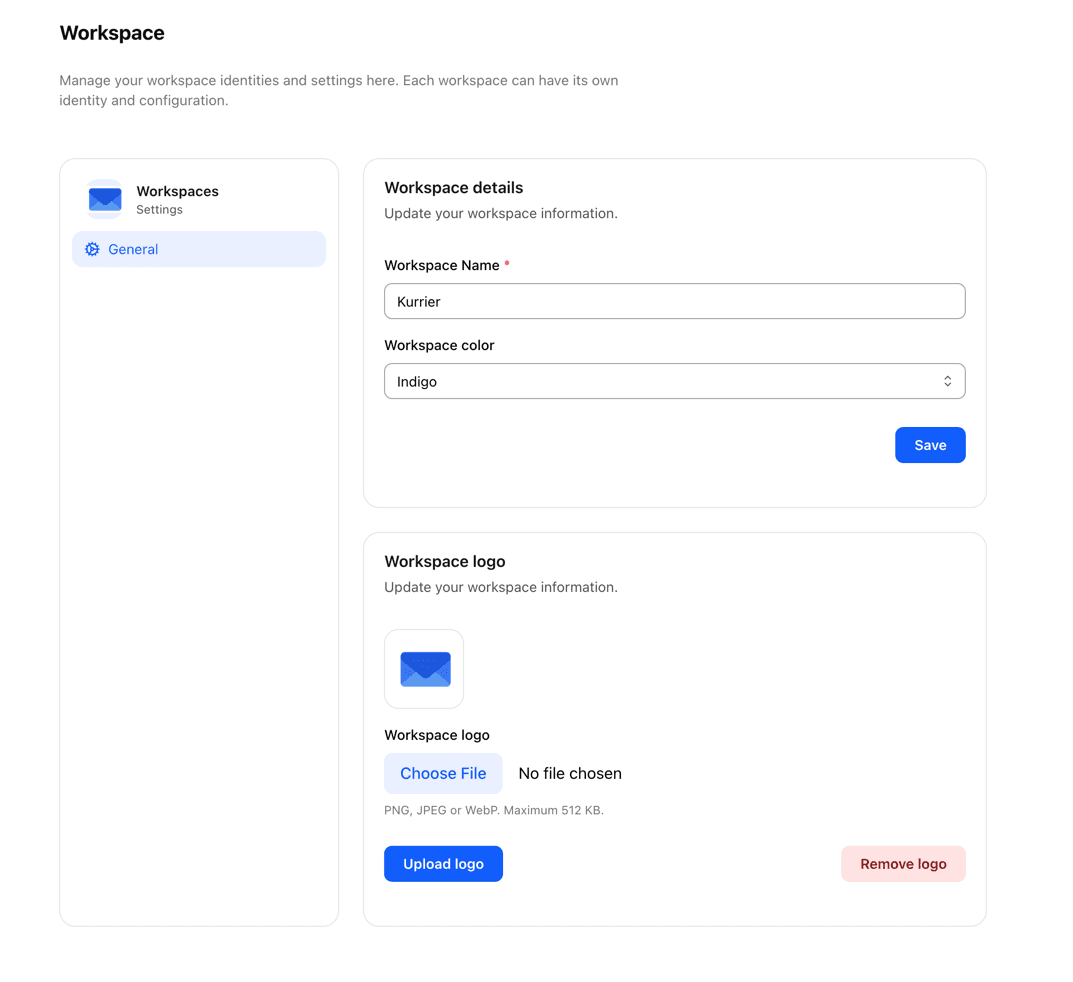
Change the workspace name
- In Workspace details, update Workspace Name.
- Select Save.
Members will see the updated name where Kurrier identifies the workspace. Changing the name does not change email addresses, domains, or stored file names.
Choose a workspace color
In Workspace details, choose a Workspace color and select Save. The choices are Neutral, Indigo, Violet, and Teal.
The workspace color controls the accent palette. Light, dark, and system appearance are separate display settings.
Upload or remove a logo
- Under Workspace logo, select a PNG, JPEG, or WebP image no larger than 512 KB.
- Select Upload logo.
- Check the preview shown above the upload field.
The logo is shown to members and on supported shared workspace content. To revert to the default appearance, select Remove logo. The name and color form is separate from the logo upload and removal controls.
If an upload fails, check the image format and size before trying again. Reload the page if an older logo remains visible immediately after an update.